Muster Control is the live session view: the screen the captain or designated muster controller looks at while a drill or a real emergency is in progress. Where the Muster List board is the static reference ("here are the assignments"), Muster Control is the dynamic running view ("here is what's happening right now").
It's the most operationally important screen on the iPad. When something is actually wrong (a galley fire, a man overboard, a medical emergency that needs the Designated Person Ashore on the line), Muster Control is what the captain has in their hand for the next thirty minutes.
Starting a session
From the iPad's navigation bar, tap the Muster Control button (the one with the orange/red icon). This opens the Muster Control screen with a slide-to-activate slider.
Drag the slider across to activate. The slider is deliberately physical: you can't accidentally trigger a muster with a casual tap.
The slider opens the Drill type panel: your configured emergencies as buttons, and below them one button reading NOT A DRILL. Tapping an emergency starts the session and tags it with that scenario, so the session record already knows what you were practising. Tapping NOT A DRILL starts it as a real event with nothing else to answer.
The panel does not wait on the network. It opens on whatever scenario list the iPad already has cached and fills in the rest if a fetch is still in flight, so a slow connection can never leave you holding a frozen slider. NOT A DRILL is usable even on a completely cold cache.
Once the session starts, it is created on the server, every other iPad on the vessel is notified via WebSocket within a couple of seconds, and the muster timer starts. Audio recording (if enabled in your settings) begins immediately.
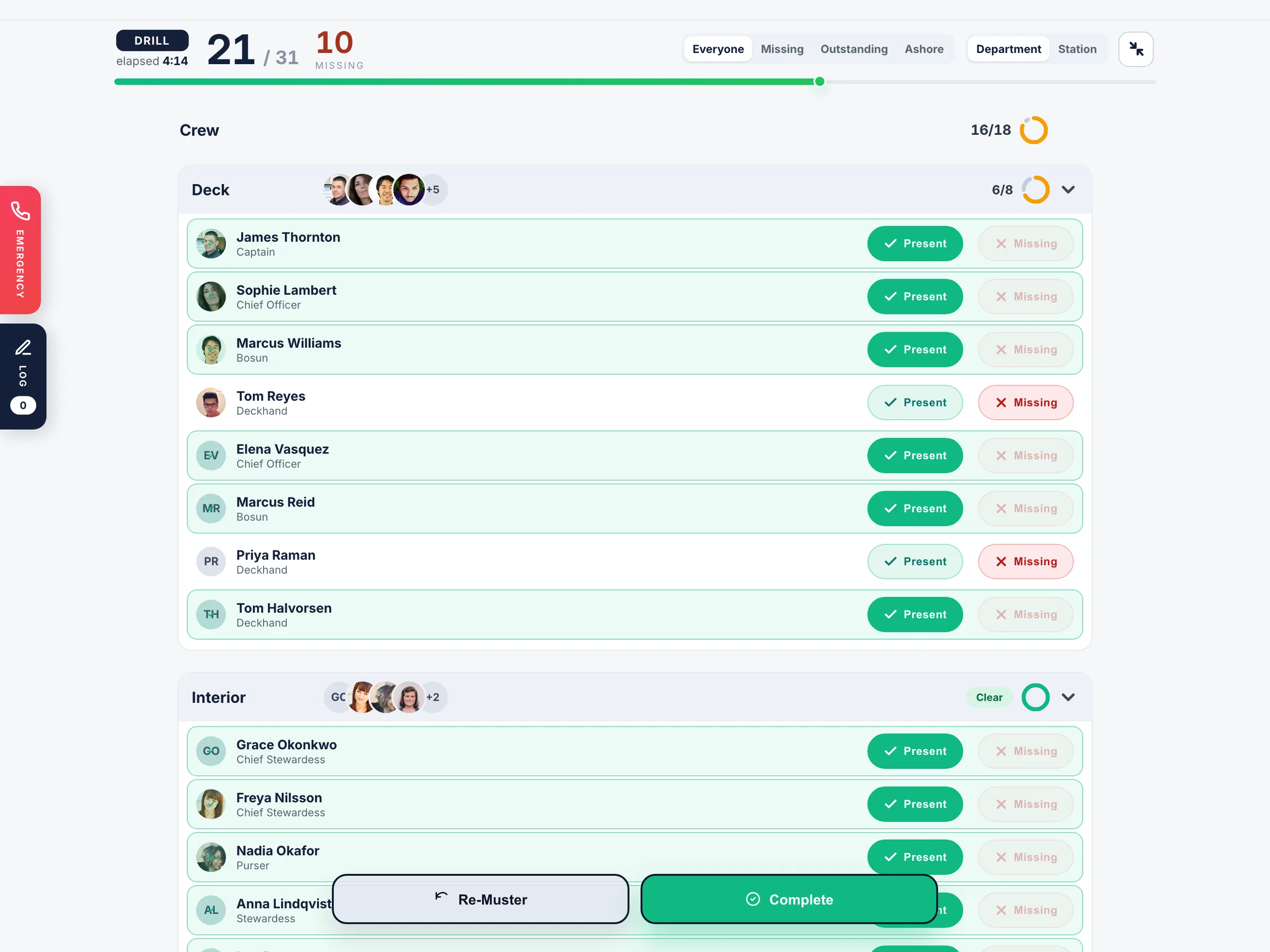
The roster: marking crew accounted for
The main panel of Muster Control is the roster: every active crew member listed with a checkbox or large tap target to mark them as accounted for. As station leaders report in, the controller taps each crew member's row to flip them from "unaccounted" to "accounted for". Visitors currently on board are also listed in their own section so the controller can confirm everyone non-crew is also accounted for.
The roster colour-codes crew by status: unaccounted are highlighted, accounted are calm. The total counts at the top of the screen update live: "23 of 25 accounted for, 2 unaccounted." That number is the most important thing on the screen and is sized accordingly.
Audio recording
From the moment the session is created, the iPad records audio continuously. The microphone runs the entire time the session is active, capturing what's being said on the bridge, the radio chatter, the controller's instructions, anything within audible range. When the session ends, the audio file is uploaded to your vessel's secure storage and attached to the session record.
This serves three purposes:
- Post-drill review: the captain can listen back to a drill and identify what went well, what was confused, and where training is needed
- Audit trail: for ISM Code purposes, having an audio record of every drill demonstrates real practice rather than paper compliance
- Real emergencies: if a real incident happens, the audio recording captures decisions and instructions in real time, which is invaluable for any subsequent investigation
The recording is automatic and doesn't need to be started or stopped manually. Once it's running, the top of the iPad becomes a dedicated recording bar: a pulsing red dot, a microphone icon, the word Recording, and a live MM:SS timer showing how long the session has been running. The bar stays visible on every tab while the session is active, so the captain always has clear confirmation that audio is being captured. Audio recording can be turned off globally from the admin panel at Muster Sessions > Settings > Audio Recording.
VoIP calling: Fire, DPA and Medical
One of the things that makes Muster Control different from a paper drill log is the live VoIP call buttons. Configured in the admin panel, these are large one-tap buttons that connect the iPad directly to:
- DPA (Designated Person Ashore): the shore-side ISM contact required by the SMS for major incidents. One tap, the call goes through over the iPad's WiFi or cellular connection.
- Medical advice: a medical assistance service like MedAire, Centro Internazionale Radio-Medico, or your own contracted provider. Critical when you have an injured crew member and need clinical guidance immediately.
- Fire / emergency services: the coast guard, port control or shore emergency line for where you are. There is one such number, not one per port, so update it in the admin panel when the vessel moves to a region where the number changes.
The call connects through the iPad's microphone and speaker, runs over WiFi when available (and falls back to cellular where present), and the entire call is also captured in the muster session's audio recording for the audit trail. When the call ends, the duration and the contact called are logged as events in the session.
This matters because in a real emergency, the bridge phone might not be the closest device to the captain. The iPad is in their hand, the call buttons are right there, and the call goes out without anyone having to hunt for a phone number.
Logging events
Throughout the session, the controller can log events as they happen. Tap the + Log Event button in the action bar and a sheet slides up from the bottom with two options:
- Quick actions: one-tap buttons for the common events your vessel logs most. Up to six are configured by the admin under Muster Sessions > Settings > Quick Actions. Defaults include "All Mustered", "Coast guard notified", "Anchor deployed", "All hands on deck", "Emergency position confirmed".
- Custom note: a free-text box for anything that doesn't fit the preset buttons. "Bridge alarm acknowledged", "Engine room secured", "Medical assistance requested via MedAire", "fwd bilge ok". Whatever captures the moment. Up to 280 characters.
Every event is timestamped to the second and added to the session's event log. You can view everything logged during the session by tapping the Session Log pill that appears in the sticky bar when there's at least one event; it opens a drawer from the right side showing the full timeline, colour-coded by event type (calls in red, notes in amber, quick actions in teal).
Free-text notes are deliberately quick and forgiving. You don't need to write a perfect sentence: the point is to capture the moment now and clean up the wording later if needed.
Re-muster
Sometimes during a drill the controller wants to re-muster: call everyone back to their stations, re-run the head count, test that the crew are paying attention. Muster Control has a Re-muster button that resets every crew member's accounted-for status back to "unaccounted" without ending the session. The original head count is preserved as a previous round in the session log, and the new round starts fresh.
This is useful for training scenarios where you want to test the crew's response under different conditions: first muster with full briefing, second muster after a simulated equipment failure, third muster in the dark. Each round is logged separately so the post-drill report shows three distinct head counts.
Ending the session
When the drill is complete (or the real emergency is resolved), tap End session. The iPad asks for confirmation, then:
- Stops the audio recording and uploads the file to the server
- Locks the session log so events can no longer be added or modified
- Generates a session summary with the duration, the scenario, the head count outcome, the events logged, and links to the audio file and any VoIP calls made
- Sends a real-time update to every iPad and to the admin panel so the session immediately appears in the historical sessions list
The session is now in the historical record under Muster Sessions in the admin panel (a top-level sidebar link, separate from the Muster List group). From there it can be reviewed, exported as a CSV, or used as evidence of compliance for ISM and flag state inspections.
Multi-iPad coordination
Although Muster Control is typically run from one designated iPad (usually the bridge iPad), every other iPad on the vessel knows a session is active. They display an emergency alert screen so anyone near a secondary iPad can immediately see that a muster is in progress.
Full multi-iPad muster (where every iPad participates in marking crew accounted for) is on the roadmap. For now the recommended setup is one controlling iPad on the bridge. Secondary iPads show the emergency alert but don't participate in the head count.
Drills versus real emergencies
Every muster session is recorded in the session log. The distinction between drill and real is applied after the session in the admin panel, where sessions can be tagged appropriately. Drills:
- Are clearly marked in the session log so they can be filtered out of incident reports
- Count toward the SOLAS/ISM training requirements your vessel needs to meet
- Don't trigger any external alerts or push notifications outside the vessel
Real emergencies:
- Are flagged in the session log and surfaced prominently in the historical view
- Can be configured to send notifications to designated shore-side contacts
- Should be followed by a written incident report in the admin panel; the audio and event log from Muster Control are useful inputs for this
It's important to be honest about which one you're running. A drill flagged as a real emergency triggers downstream processes that you don't want triggered for a drill, and vice versa.
Offline behaviour
Muster Control works offline. This is non-negotiable, because a real emergency at sea is exactly the moment you can't depend on connectivity. The session is created locally on the iPad, the audio recording continues to disk, every event you log is captured in the local database, and the roster updates locally as you mark crew accounted for. When connectivity returns, the entire session syncs to the server.
Some features depend on connectivity: VoIP calls obviously need a working network connection (WiFi or cellular), and shore-side notifications can't go out without a connection. But the core muster workflow (start session, mark crew accounted for, log events, end session) runs identically whether the iPad has internet or not.
This is by design. The Muster App was built for the moment everything else fails.
What to read next
Muster Control is the active counterpart to the Muster List & Abandon Ship reference view. Together they cover the whole muster workflow from training to live session. To set up the scenarios, stations and crew assignments that Muster Control runs against, see Building emergency scenarios. For your first drill walkthrough, see Running your first muster drill.